Introduction to SSH and How to Login Into A Remote Linux Virtual Machine
Introduction
SSH (Secure Shell) is a fundamental tool in computer networking that allows two or more computers to communicate securely over a network. It was originally developed by Finnish researcher Tatu Ylönen, in response to a password-sniffing attack on his university's network in the summer of 1995.
Today, SSH serves as the foundation for many file transfer and remote connection protocols. Understanding how SSH works is an essential skill every developer must have.
In this article, you'll learn all there is about SSH, how it works, and the problems it solves. To solidify your knowledge, you'll also learn how to SSH into a Linux virtual machine (VM) created with Google Compute Engine, transfer files from your local computer to the VM instance using scp (Secure Copy Protocol), and spin off an Apache web server on the VM.
What is SSH and How Does it Work?
SSH is an internet protocol based on the TCP/IP protocol that establishes a secure connection between a client and a server over an unsecured network. It was developed as a replacement for unsecured network protocols like Telnet and remote shell (rsh), which use plaintext passwords for authentication. SSH has numerous applications, including logging into a remote computer's shell or command-line interface, transferring files using SCP or SFTP, tunneling, port forwarding, and more.
To use SSH to establish a connection between your local computer and a remote virtual machine or host, you need to install an SSH client on the computer you're connecting from, and an SSH server on the computer you're connecting to. By default, SSH uses port 22 to listen to connections between a client and server. However, since everyone knows SSH runs on port 22, this makes it a common target for brute-force attacks, so some administrators change the default port to a less predictable number to enhance security.
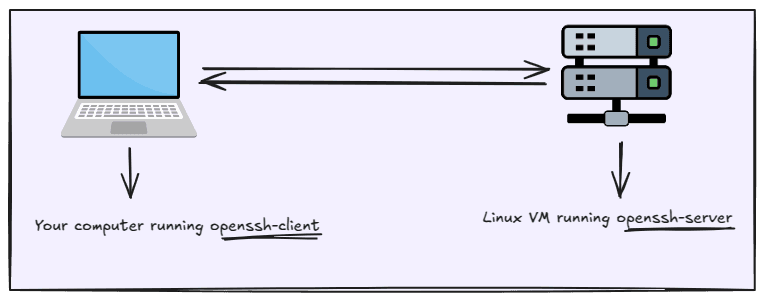
SSH enables secure connection and transfer of data between two computers by using cryptography to authenticate and encrypt connections, ensuring that data transmitted between the client and server remains private and protected from eavesdropping. SSH allows several authentication methods for securely verifying a client's identity when connecting to a server. These include:
- Password authentication: Uses a username and password.
- Key-based authentication: Uses a public key stored on the server and a private key stored on the client computer.
- Two-factor authentication or certificate authentication: Provides additional security by requiring a second factor or a digital certificate.
Here's the command structure to instantiate a SSH connection between a computer and a remote server:
ssh <username>@<server name or IP address>
For example:
ssh michael@192.168.57.23
What is OpenSSH?
OpenSSH is a popular and open-source implementation of the original SSH program developed by Tatu Ylönen. It consists of a suite of programs that provide several capabilities, including:
- Remote operations and file transfer using tools like
opensh-client,openssh-server,sftp,scp, etc. - Key generation and management using
ssh-keygen,ssh-add, etc. - A service side toolkit consisting of tools like
sshd(OpenSSH daemon - a background service that listens for incoming SSH connections and handles authentication, session management, and encryption).
If you're using a Linux distro such as Ubuntu, Debian, Fedora, etc., OpenSSH client is usually installed by default, meaning you can use the ssh command to connect to remote servers without needing to install anything separately.
You can verify if SSH is installed on your computer by running the following command:
ssh -V
If OpenSSH is installed, you should see an output similar to the following:
OpenSSH_9.6p1 Ubuntu-3ubuntu13.8, OpenSSL 3.0.13 30 Jan 2024
Now that you understand what SSH is and how it works, let's explore a real-world example of how to use it in practice.
Create a Google VM Instance
Google Compute Engine (GCE) is a component of Google Cloud Platform (GCP) that allows users to create and manage virtual machines (VMs) using Google's infrastructure. It's similar to Amazon EC2 and Microsoft Azure VMs.
Google offers a free tier that provides access to several Google Cloud products, including Compute Engine, BigQuery, Cloud Run, and more, at no cost. The free tier for Compute Engine includes the following resources, which is more than enough for our use case:
- One non-preemptible
e2-microVM instance per month in one of the following U.S. regions:- Oregon:
us-west1 - Iowa:
us-central1 - South Carolina:
us-east1
- Oregon:
- 30 GB-months of standard persistent disk storage
- 1 GB of outbound data transfer per month from North America to all regional destinations (excluding China and Australia)
To create and launch a VM using GCE, follow these steps:
- In the Google Cloud console, go to the VM instances page.
- When the VM instances page is ready, click Create instance.
- In the Name field, enter a name for your VM. I named mine
linux-server. - In the Region list, select us-central1.
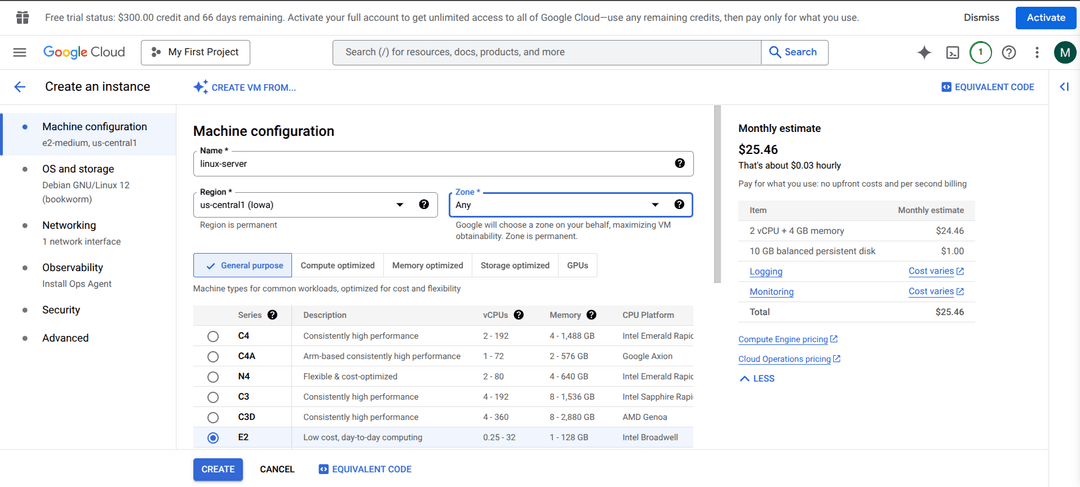
- In the Zone list, select us-central1-a.
- In the Machine type list, select E2.
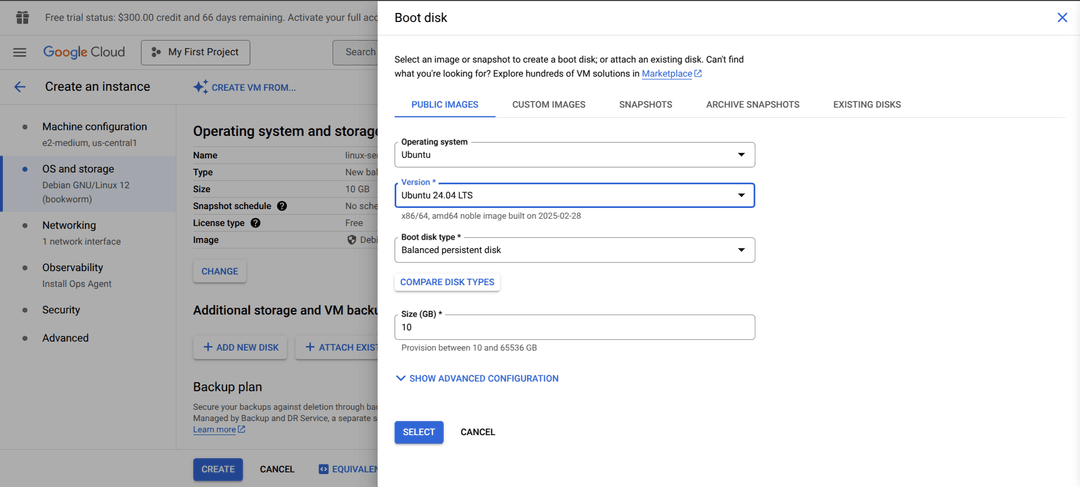
- In the left navigation menu, click OS and storage.
- Click Change.
- In the Boot disk pane, on the Public images tab (default), select the following options:
- In the Operating system list, select Ubuntu.
- In the Version list, select Ubuntu 24.04 LTS.
- In the Boot disk type list, select Balanced persistent disk.
- In the Size box, choose 10.
- Click Select.
- In the navigation menu, click Networking.
- In the Firewall section, select Allow HTTP traffic.
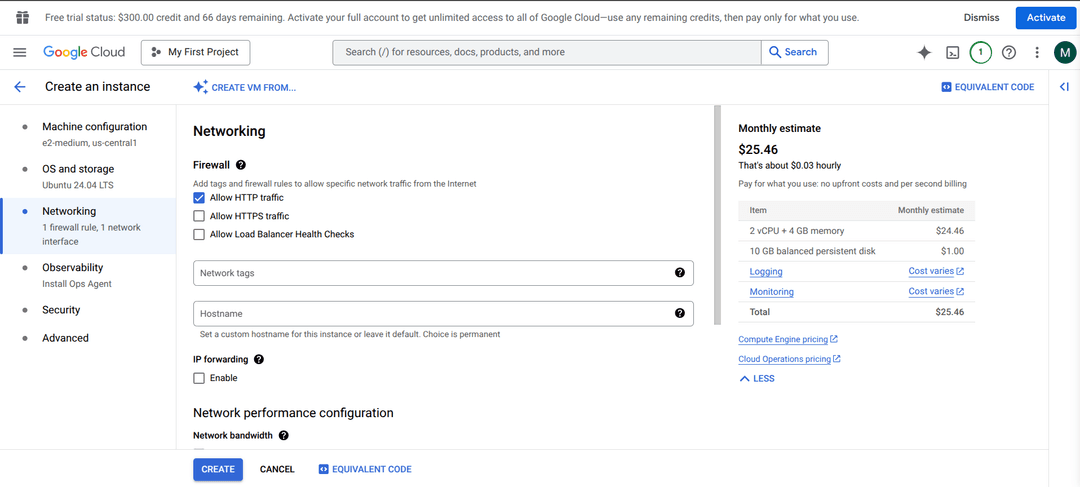
- Click Create.
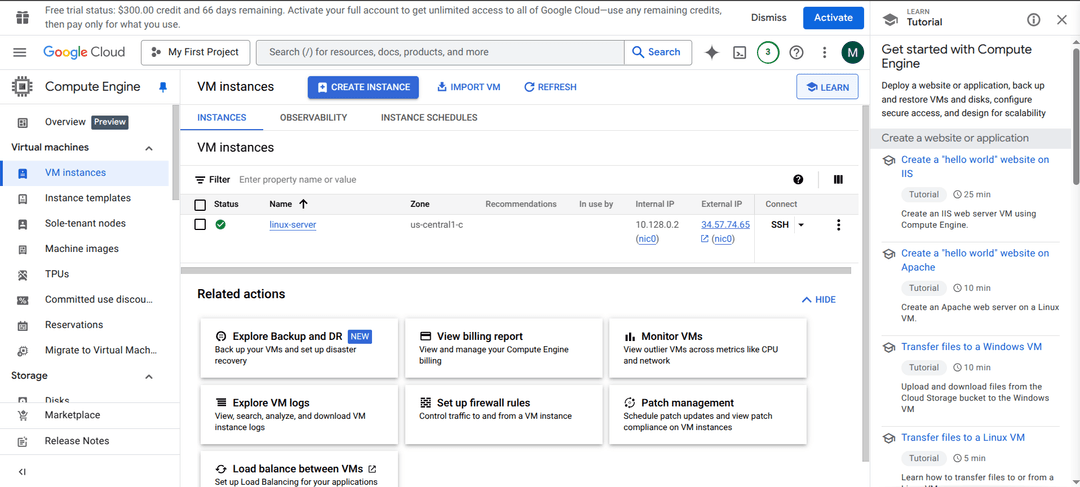
Now your new VM is listed on the VM instances page. When a green checkmark appears as shown in the image below, you're ready to connect to the VM and use it.
When you create a Linux VM with Compute Engine, openssh-server is installed and enabled by default - you can confirm this by running the following command after connecting to the VM via SSH:
dpkg -l | grep openssh-server
You should see an output similar to this:

SSH into the VM Instance
In this section, we'll explore two different ways you can connect to your VM instance using SSH.
1. Connect using Google Cloud CLI
Google Cloud CLI (gcloud CLI) is a command-line tool that allows us to create, manage, and interact with Google Cloud resources, including VMs, from the command line or through scripts, automating many common GCP tasks. To install gcloud CLI for your OS, follow the instructions on this page.
After the installation, initialize gcloud CLI by running the following command:
gcloud init
2. Connect using OpenSSH
In this step, we'll use key-based authentication to establish a connection between our computer and the VM.
To use key-based authentication, there are three basic steps we need to follow:
- Create public and private keys
- Upload public key to VM
- SSH into the VM using the private key
Step 1 - Create public and private Keys
To set up key-based authentication, we'll use the ssh-keygen tool from the OpenSSH suite to generate an SSH key pair. Since ssh-keygen is included with OpenSSH, there's no need for a separate installation. You can verify its presence by running ssh-keygen -V in the terminal.
Several cryptographic algorithms can be used to generate an SSH key pair, including RSA, ED25519_SK, ED25519, and more. However, the book Practical Cryptography With Go recommends ED25519 as a more secure and efficient alternative to the others, so we'll use ED25519 to generate the key pair.
Before generating a new SSH key pair, it's possible that one already exists in
~/.sshon your local computer. If your existing keys are secure, strong, and already in use, you can stick with them. Otherwise, generate a new one.
Run the following command to use the ED25519 algorithm to generate a new key pair:
ssh-keygen -t ed25519
When prompted with:
Enter file in which to save the key (/home/user/.ssh/id_ed25519):
simply press Enter to use the default location. Next, you can either set a passphrase for added security or press Enter to skip it.
Once the key pair is generated, navigate to the ~/.ssh directory:
cd ~/.ssh
Here, you'll find two separate files:
id_ed25519.pub: Contains the public key, which can be shared.id_ed25519: Contains the private key, which must be kept secure.
Step 2 - Upload public key to VM
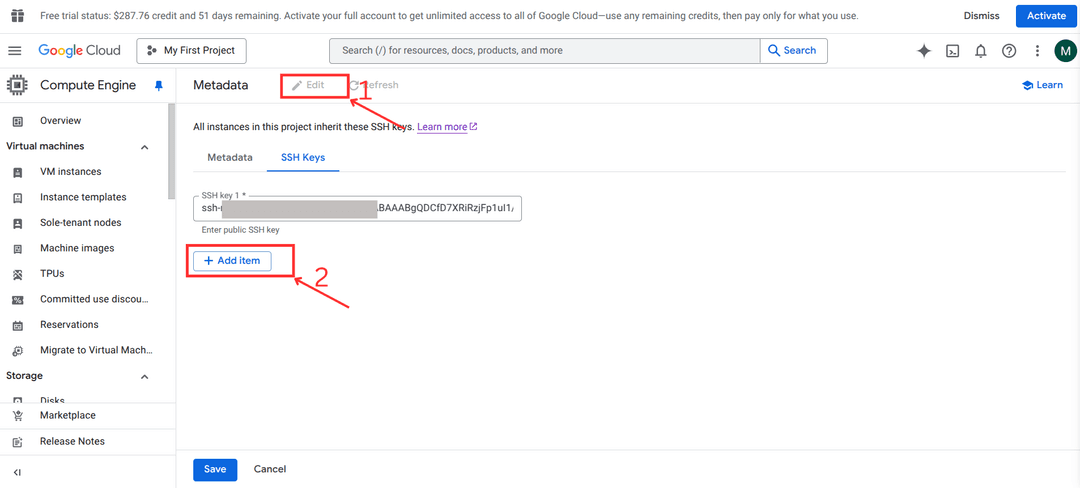
Since our VM is hosted on GCP, we'll need to upload the public key to Compute Engine on our Google Cloud console. Copy the content of the id_ed25519 file from Step 1 and go to the metadata settings page for Compute Engine on Google Cloud console.
On the page, you may notice an SSH key already exists. Yes, this is the key that was generated when you connected to the VM via gcloud CLI. To add a new SSH public, click on Edit > Add item as shown below:
Once the public key has been added successfully, we can now go back to our local terminal to connect to the VM.
After adding the key, note your username. You'll need it when connecting via SSH.
Step 3 - SSH into the VM using private key
Finally, to connect to the VM, run the following command:
ssh -i ~/.ssh/id_ed25519 your-user-name@VM_EXTERNAL_IP
- Replace
your-user-namewith your username fromStep 2 - Replace
VM_EXTERNAL_IPwith your VM external IP address
If you set a passphrase when generating the key pair, you'll be prompted to enter it to unlock the private key before proceeding.
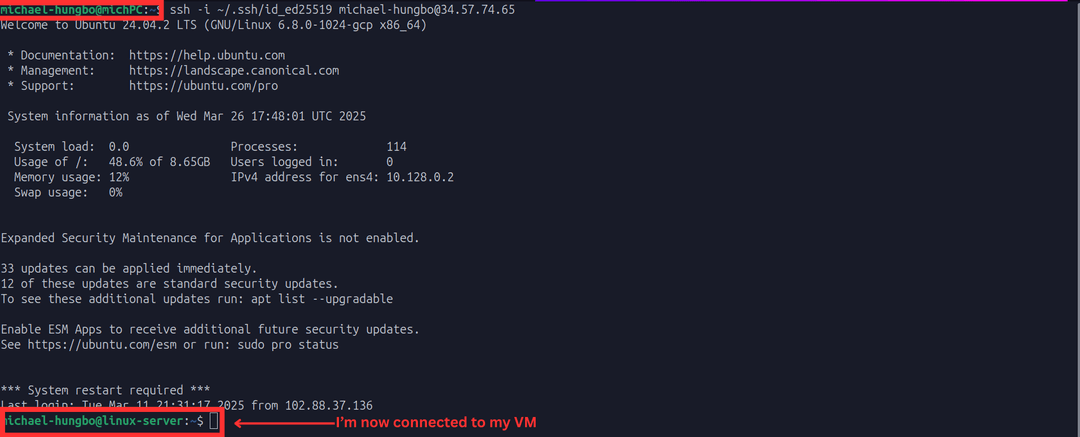
Voila! You should now be logged into your virtual machine. You can see the changes in the terminal prompt as highlighted in the image below:
Transfer files to the Linux VM using scp
The VM we created uses the boot disk as storage, meaning whenever the VM is stopped or deleted, all files or data created in it will be lost. However, if we need to persist data, we can attach a persistent disk to the VM instance.
For simplicity's sake, we'll go with the boot disk storage since we don't need to store any important data in the VM. gcloud CLI includes a command, gcloud compute scp, that allows us to transfer files from a remote VM instance and vice versa.
The command structure looks like the following:
gcloud compute scp LOCAL_FILE_PATH VM_NAME:REMOTE_DIR --project PROJECT_ID
Where:
LOCAL_FILE_PATH: the path to the file on your machineVM_NAME: the name of your VMREMOTE_DIR: a directory on the remote machinePROJECT_ID: the Project ID (you can rungcloud projects listto get the Project ID).
First, log in to your VM, then create a folder named pictures in the root folder:
mkdir pictures
Now, here's an example command (ensure you're running this command in a new local terminal prompt, not inside your VM instance) to transfer an image file from my computer to the VM:
gcloud compute scp /home/michael-hungbo/Pictures/cld-sample.jpg linux-server:/home/michael-hungbo/pictures --project my-project-id
Now, if you go back to your VM instance terminal, you can confirm the file has been transferred by running ls in the pictures folder:

Serve a web page using Apache
One of the cool things people do with VMs is creating web servers to deploy websites and apps to the cloud. Apache is an open-source HTTP web server that listens for requests from clients (like web browsers) and then responds by sending back the requested web pages or other files.
In this section, we'll set up an Apache web server on our VM and customize the default web page using CSS.
SSH into your VM using a local terminal and run the following command to update the package list:
sudo apt-get update
Next, install Apache2 HTTP web server:
sudo apt-get install apache2
By default, Apache serves a generic web page. We'll replace it with our own HTML file.
Run the following command to overwrite the default Apache index file with a simple HTML page:
echo '<!doctype html><html><body><h1>Hello World!</h1></body></html>' | sudo tee /var/www/html/index.html
To enhance the look of our web page, let's create a CSS file and link it to the HTML file.
- Open the HTML file in a text editor:
sudo nano /var/www/html/index.html
- Modify the content to include a reference to an external CSS file:
<!DOCTYPE html>
<html>
<head>
    <title>Setting up Apache on a Linux VM</title>
    <link rel="stylesheet" type="text/css" href="style.css">
</head>
<body>
    <h1>Welcome to My Web Page!</h1>
    <p>This page is styled using CSS.</p>
</body>
</html>
-
Press
CTRL + X, thenY, andEnterto save and exit the editor. -
Now, let's create the
style.cssfile inside the web directory.
sudo nano /var/www/html/style.css
- Then add the following code to the CSS file:
body {
    background-color: #f4f4f4;
    font-family: Arial, sans-serif;
    text-align: center;
    padding: 50px;
}

h1 {
    color: #333;
}

p {
    font-size: 18px;
    color: #666;
}
-
Press
CTRL + X, thenY, andEnterto save and exit the editor. -
To apply the changes, restart the Apache server:
sudo systemctl restart apache2
- Finally, run the following command (outside the VM terminal) to retrieve the VM's IP address.
gcloud compute instances list --format="table(name, networkInterfaces[0].accessConfigs[0].natIP)" --project PROJECT_ID
Paste the IP address in a browser and you should see the page rendered as follows:

To avoid incurring unnecessary charges to your account, it's recommended to delete a VM instance if you no longer need it.
To delete a VM instance on your Google Cloud console, do the following:
- Navigate to the VM instances page.
- Click on the VM instance.
- In the menu that pops up, click Delete.
Conclusion
SSH is a powerful tool with numerous applications in computer programming. Whether you're managing a server, deploying applications, or troubleshooting issues, SSH is an essential skill for working with remote systems securely and efficiently.
In this article, you've learned what SSH is, how it works, and how to use it effectively. I hope this guide serves as a solid foundation as you continue exploring the world of computer networking.
As an exercise, consider setting up an SSL certificate for an Apache web server or deploying your own custom website to a virtual machine.